Terminal and Code Execution
Execute and test your code in real-time with Collab's integrated terminal. Run programs, debug collaboratively, and validate changes directly in your browser - all while maintaining a streamlined development workflow in your shared workspace.
Terminal
The Terminal in Collab brings code execution capabilities directly into your collaborative environment. As a browser-based code editor, you need to test and run your code in real time—and Collab's built-in terminal makes this seamless.
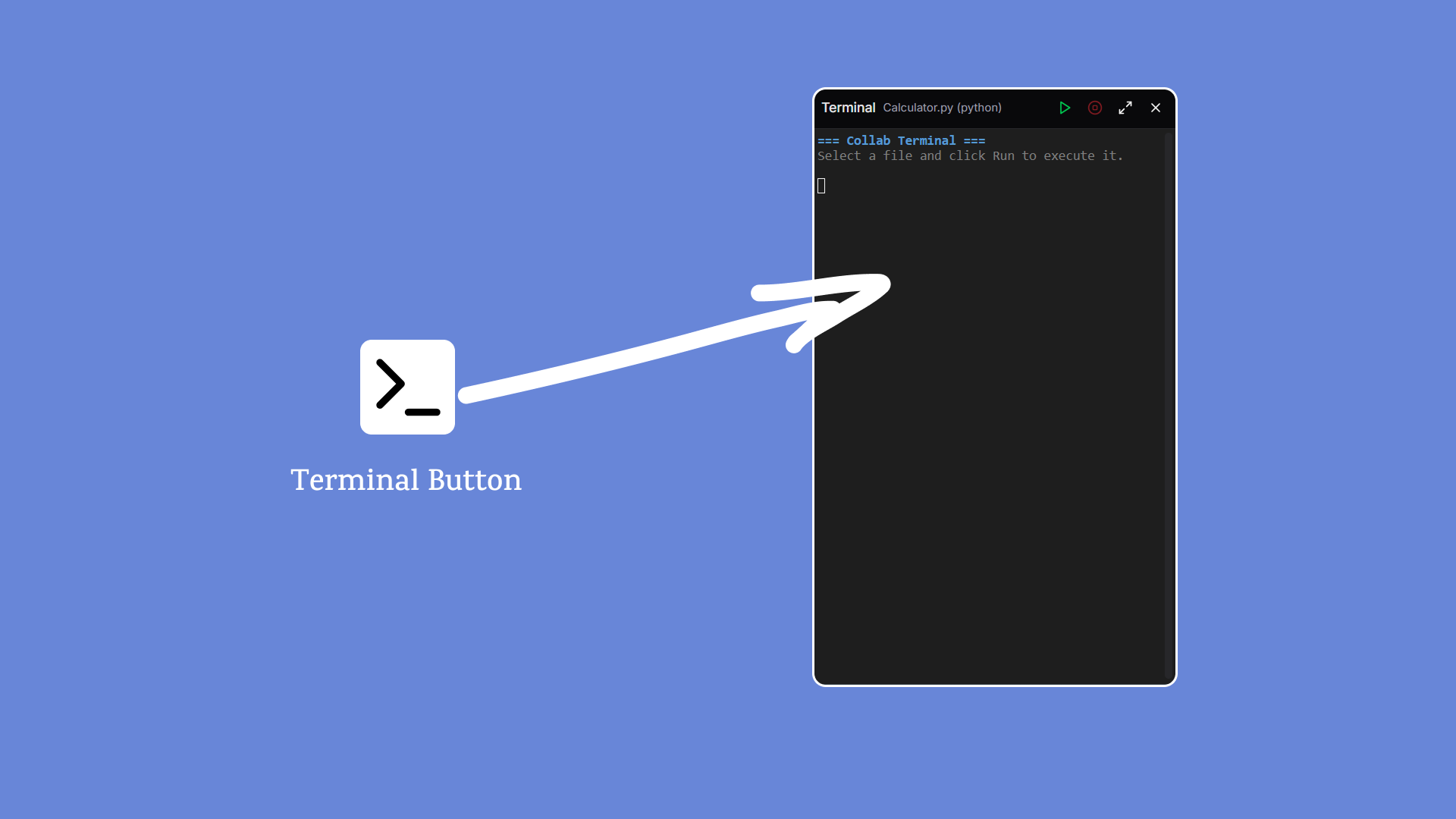
🖥️ Terminal Overview
The terminal currently supports running a single file at a time (as of the Testing version). This limitation helps maintain consistent performance across all collaborative sessions. Support for multi-file compilation and execution is in active development for future releases.
🚀 How to Use the Terminal
- 🔹Open the Terminal: On the left sidebar, locate the terminal icon (above the file tree panel). Click it to open the terminal panel on the right side of the screen.
- 🔹Save Your File: Before running any code, save your current file. Click the Save icon (located next to the Terminal button) to store all changes in memory.
- 🔹 Run the Code: Click the Run button in the terminal panel. This executes the currently open file and displays the output within the panel.
⚠️ Note: Currently, only the file in focus can be executed. Running multiple interconnected files (e.g., in Java, C++, or modular projects) is under development.
🧰 Terminal Use Cases
- 🔹Quickly test snippets of code during a collaboration session
- 🔹Debug collaboratively by editing and running code live
- 🔹Validate changes before committing them to the repository
- 🔹Demo feature additions or bug fixes in real time with teammates
Collab's terminal makes the build → run → debug cycle seamless—all within your browser, no local setup needed. The terminal environment comes pre-configured with major programming languages, eliminating the need for complex local development setups. This streamlines the development process, particularly for remote and distributed teams.